
Run and debug your dialogue in the IMS Creators editor
This tutorial is a part of the Getting started series — Day 4, Week 1, Month 3.
The problem: you don't know how a dialogue works until you run it
Your script has lines, speakers, branching nodes, and boolean logic — yet nobody has actually heard it run. In your head, pacing is always flawless and gated options don't exist. But the moment you play it, a line that seemed natural lands three sentences too early.
In the first article you learned to build dialogue graphs, and in the previous one to give the graph memory. Today your graph learns to play back natively and step through logic node by node.
Run in presentation mode
Take a look at the script toolbar: you'll see a Play button with the tooltip "Run in presentation mode".

Click it, and the player launches right inside your canvas. No compilation scripts, no external game engine, and no waiting for project builds.
The run window steps through the scene sequentially:
- The current line and its active Character field, the speaker you assigned in the article.
- Interactive response options rendered as buttons. The "Fire extinguisher" choice, gated by yesterday's unmet condition, appears disabled: the player sees the option but cannot select it.
- A linear line without branches presents a single Continue button to advance the flow.
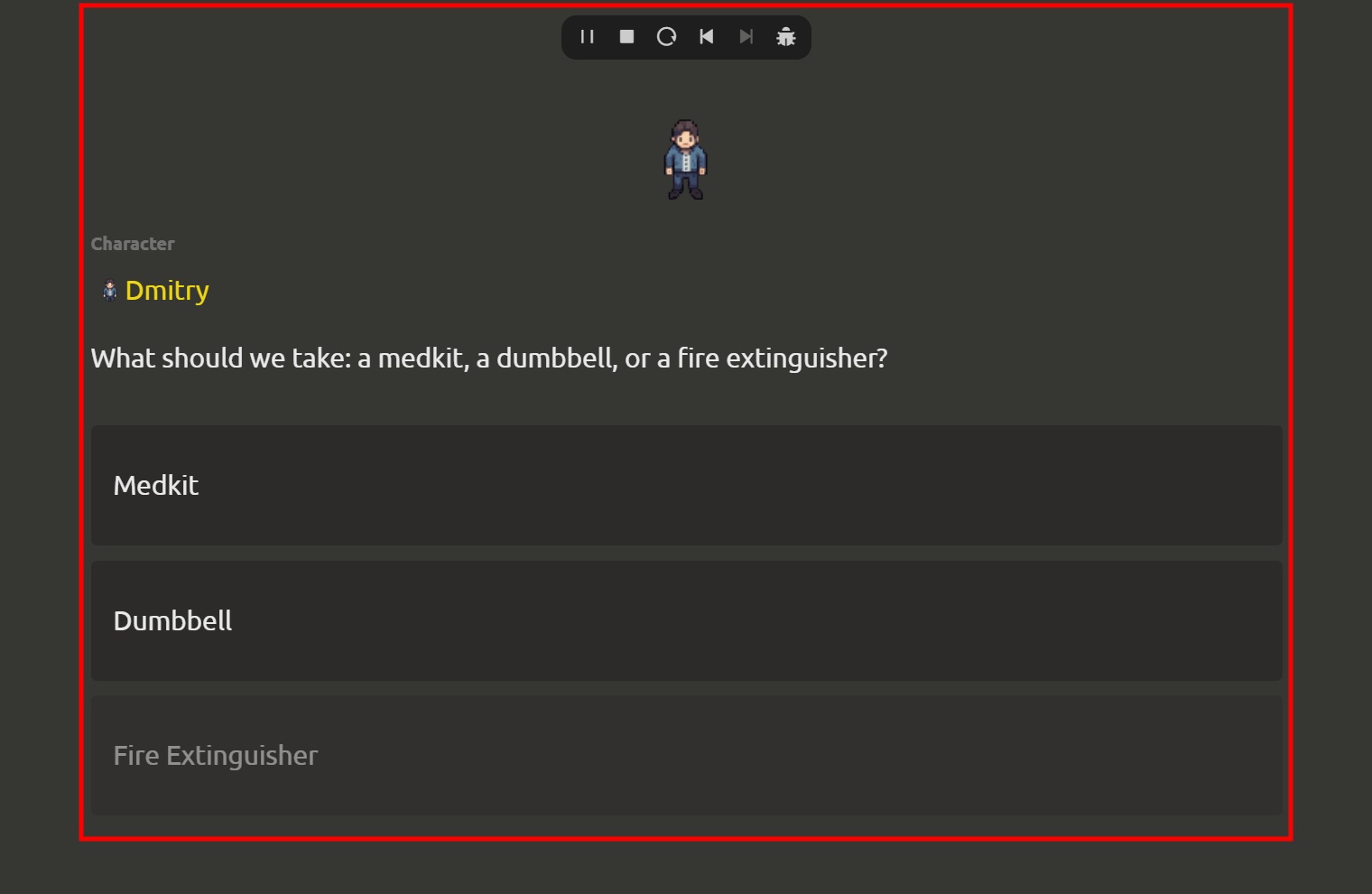
With Pause and Resume you can stop the dialogue and continue from the same spot, Stop resets the run, and Restart sends the script back to the Start node. That is how you judge the lines exactly as a player will hear them. Meanwhile presentation mode never changes the graph structure — it executes exactly what is drawn.
You don't have to start from the beginning every time. Right-click any node and select "Run from this node" — the player launches immediately from that specific line.
Skip the introductory monologue on your fifth pass, dive straight into a disputed branch, or isolate a refusal path. Comment nodes are the only exception: they contain no executable logic, so you cannot launch playback from them.
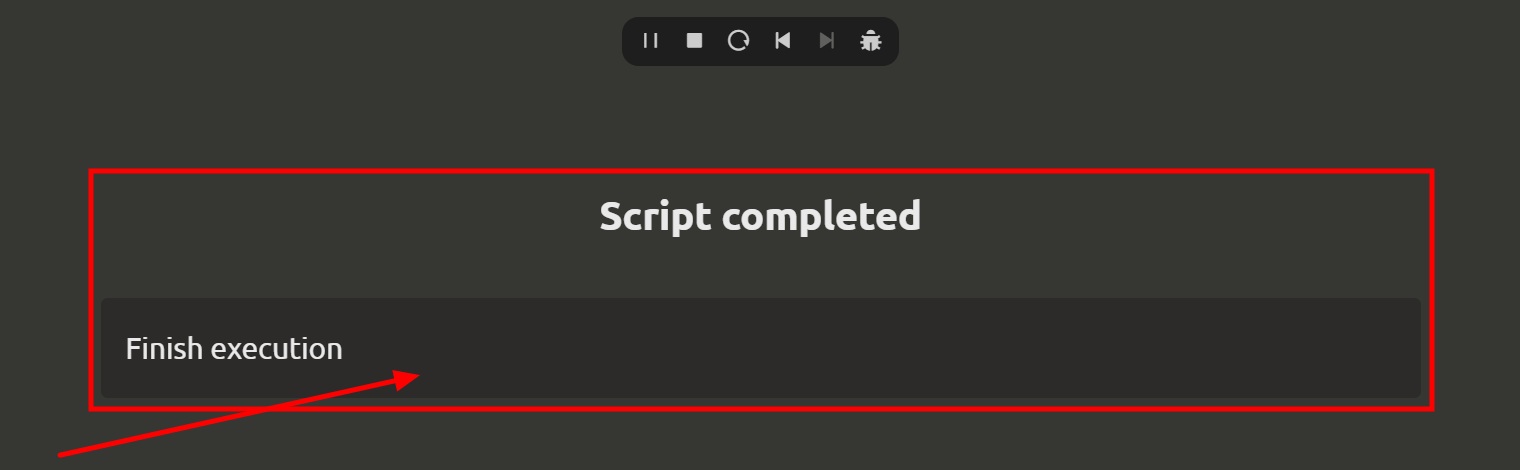
When the execution stream reaches the end, the editor notifies you with "Script completed". Clicking "Finish execution" closes the playback session.
If a critical structural issue exists, the editor flags it instantly before anything else breaks: "Script has no start node". A graph without a Start node refuses to execute and states the exact missing requirement. It does not try to guess how the script should behave; it reports the error when it cannot continue. Add a Start node from the first article, wire it to your opening line, and hit play again.
Run in debug mode
Where presentation mode answers "how does this sound out loud?", debug mode answers "why did the logic branch here?". The second toolbar button — tooltipped "Run in debug mode" — executes the same script under your direct control:
- Step forward and Step back controls walk execution node by node. You see every line highlight and every connection path taken. Yesterday's variable toggles right at the Set variable node, pinpointing the exact moment state changes. No more guessing why an unexpected branch triggered.
- Right-clicking any node and selecting "Debug from this node" launches a debug session directly from that point. This isolates error-handling branches without replaying setup scenes or steps into Tuesday's menu loop on its third iteration.
- Pre-configure state before testing. The Variables inspector stays active during debug runs, displaying real-time values. Changing the state by hand in the inspector is easier than reproducing the whole sequence of game events. Open "Manage variables" and toggle hasKey to true before launching. The "Fire extinguisher" option unlocks on step one without manually navigating to the key.
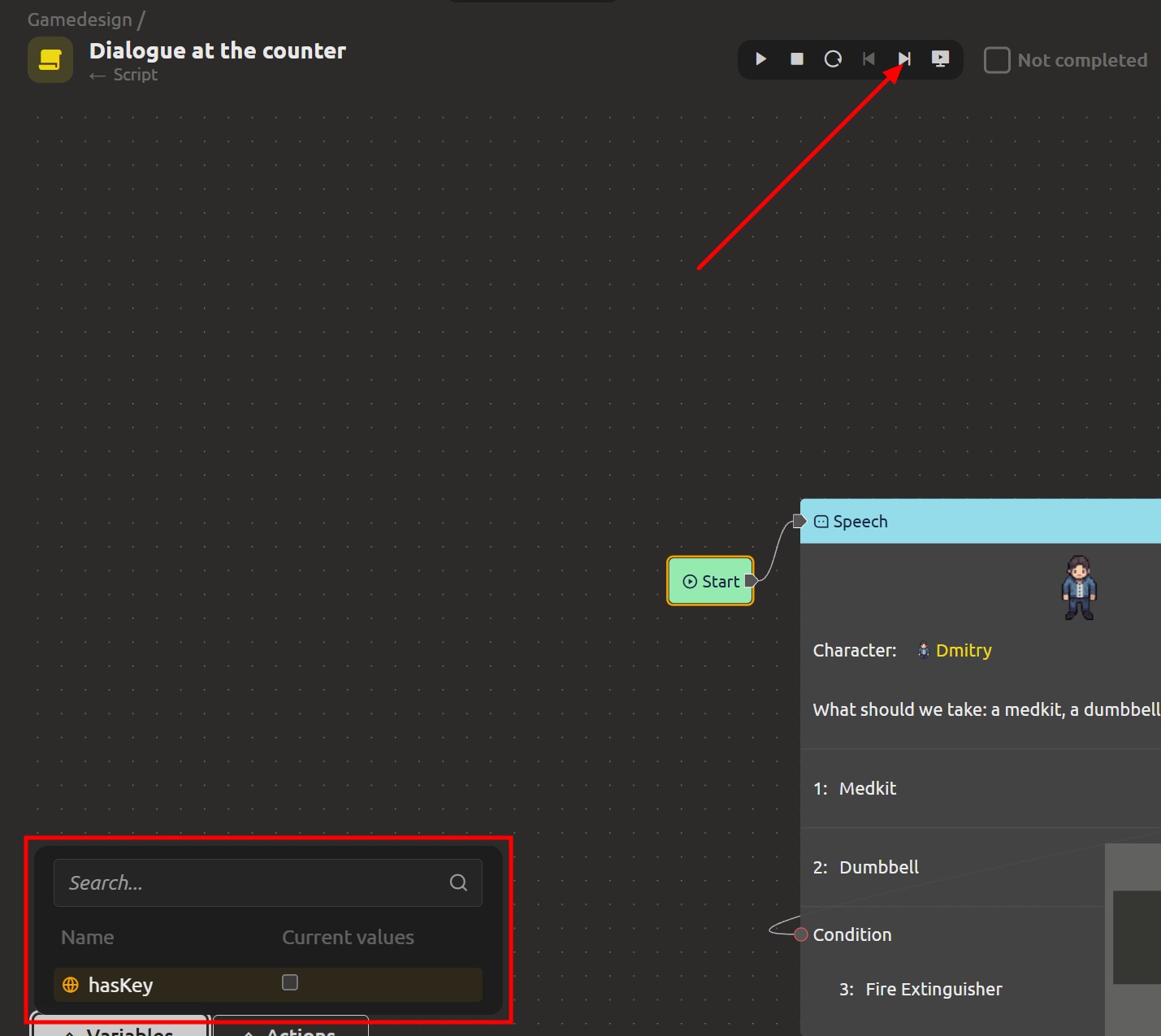
Combine both tools like a game writer. Use presentation mode to critique the writing style, and debug mode for the algorithms: every branch behind yesterday's Branch node and every gated option.
Debug mode retains standard controls — Pause, Stop, and Restart let you stop execution anywhere and restart the branch.
What's next: the same run, inside the game
Both modes follow a single rule: the in-editor run reflects true dialogue behavior. Then that logic leaves the editor. The exact same graph, exported as JSON, runs inside Godot through the imsc-script-godot player — detailed in run your dialogue in Godot.
Try it yourself: https://imsc.space/app/try. Run your script, then switch on debug mode with the "Run in debug mode" button and step forward once to watch how the variable's value is passed. If some line sounds unnatural or grates on the ear, you have just found and fixed one of the simplest mistakes before it ever gets into the game.
FAQ
Do I need a game build to test my dialogue?
No. Both execution modes run directly inside the editor — whether in the desktop app or your browser tab. You don't need engine builds or file exports to listen to your script or step through nodes. Furthermore, playback never alters your project data: it executes the graph as drawn, while new edits take effect on your next run.
What is the difference between presentation mode and debug mode?
Presentation mode displays the player's experience for testing. Debug mode provides granular engineering control: Step forward and Step back stepping, plus "Debug from this node" context launching. Both modes allow starting from any node via right-click.
Why does my script say it has no start node?
Because your graph is missing an entry point — a Start node. Create one from the context menu and link it to your first dialogue line. Every execution requires a Start node; without it, the parser cannot establish an entry point and blocks playback.
Can I test one branch and change a variable during the run?
Yes to isolated testing: right-click any node and select "Run from this node". This tests failure paths or inner loops without replaying the full conversation from the top.
Variable state changes must be configured before launching: edit the Default value in the Variables list via "Manage variables". Live state changes during execution occur automatically as playback passes through a Set variable node.